
Download Vidmore Screen Recorder – Free, Secure, High‑Definition Screen Capture Tool
Overview
Vidmore Screen Recorder is a desktop‑focused screen capture utility designed by Vidmore to simplify video recording, audio capture, and screenshot creation on Windows and macOS. The software offers a clean, toolbar‑style interface that lets users select any portion of the screen, adjust resolution, enable webcam overlays, and record multiple audio sources—all in high definition. Whether you need to produce tutorial videos, capture gameplay, or archive a webinar, Vidmore provides an intuitive workflow that rivals industry staples such as SnagIt and Jing. A free trial lets you explore the core features before committing to a subscription or one‑time purchase, and the tool includes a handy preset manager for saving frequently used configurations. While it lacks a mobile companion, the desktop experience is polished, secure, and regularly updated, making it a reliable choice for educators, marketers, and casual users alike.
Key Features & Benefits
- Full‑screen, window, or custom area video recording with up to 4K resolution.
- Separate audio recorder supporting system sound, microphone, or both simultaneously.
- Integrated screenshot tool with basic annotation (crop, text, shapes).
- Webcam overlay and picture‑in‑picture mode for face‑cam recordings.
- Multi‑monitor support with easy display selection.
- Preset manager for saving resolution, frame rate, and audio settings.
- Export options to MP4, MOV, AVI, GIF, and image formats (PNG, JPEG).
- Built‑in video trimming and basic editing without leaving the app.
- Secure, encrypted storage of recorded files on local drives.
- Regular updates and responsive customer support.
These features translate into real‑world benefits: creators can produce professional‑looking videos without third‑party editors, businesses can quickly generate training material, and anyone can capture fleeting on‑screen moments with a single click. The preset system saves time for repeat tasks, while the webcam overlay adds a personal touch to presentations. Because Vidmore records in lossless or high‑quality compressed formats, the output remains crisp even after multiple edits. The inclusion of both video and audio recorders means you can capture a live webinar’s audio stream without the visual clutter, ideal for podcasting or transcription work.
Security is another strong point. Vidmore stores recordings locally, avoiding cloud‑based privacy concerns, and the installation package is signed and scanned for malware. The software also respects system resources, offering hardware acceleration options that keep CPU usage low during long recording sessions. Overall, the feature set balances power and simplicity, catering to both beginners and seasoned producers.
Installation, Usage & Compatibility
Getting Vidmore Screen Recorder up and running is straightforward. Download the installer from the official Vidmore website—choose the Windows or macOS version that matches your operating system. The installer is signed, ensuring a secure download free from adware. After launching the .exe (Windows) or .dmg (macOS) file, follow the on‑screen prompts: accept the license agreement, select an installation folder, and click “Install.” The process completes in under two minutes on most modern machines.
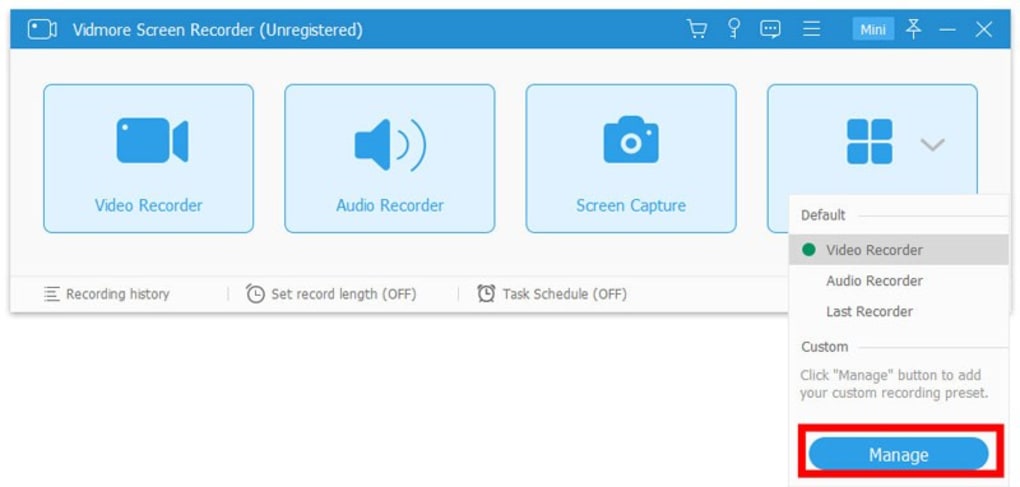
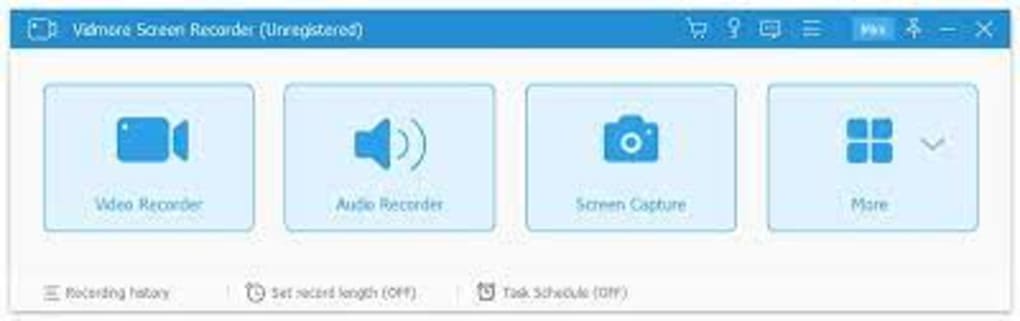
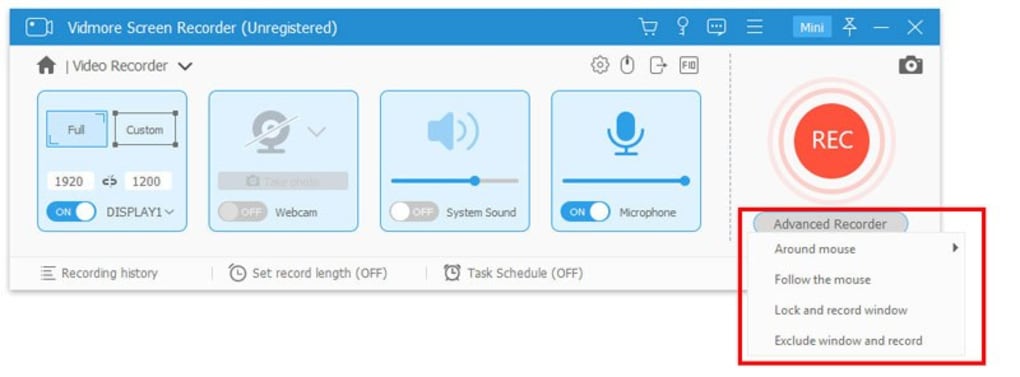
Once installed, launch the application from the desktop shortcut or start menu. The main toolbar displays four icons: Video Recorder, Audio Recorder, Screen Capture, and Presets. To record a video, click the Video Recorder icon, then choose between Full Screen, Window, or Custom Area.
Adjust resolution, frame rate, and enable the webcam if desired. Press the red “Record” button to begin; a small floating control panel lets you pause, resume, or stop the capture. Audio‑only recordings follow a similar workflow: select the audio source (system, microphone, or both), set gain levels, and start recording.
For screenshots, click the Screen Capture icon, drag to select the region, and release to capture. An annotation toolbar appears, offering text, arrows, and shape tools. Save the image in PNG or JPEG format, or copy it to the clipboard for immediate pasting.
Vidmore Screen Recorder is compatible with Windows 10/11 (64‑bit) and macOS 10.15 Catalina or later. It runs smoothly on machines with at least 4 GB RAM and a dual‑core processor, though higher specs improve performance for 4K recordings. The software supports both Intel and Apple Silicon Macs, automatically selecting the appropriate rendering engine.
After each recording session, you can access the built‑in library to trim clips, add simple transitions, or export directly to your preferred format. The program also integrates with popular video‑sharing platforms; a one‑click upload to YouTube or Vimeo is available for users with an active internet connection. Finally, remember to check for updates regularly—Vidmore releases patches that improve codec support and address security vulnerabilities, keeping your installation both current and safe.
Pros, Cons, FAQ & Conclusion
Pros
- Intuitive UI that requires virtually no learning curve.
- High‑definition recording with webcam overlay.
- Separate audio recorder for flexible sound capture.
- Built‑in basic editor eliminates the need for third‑party tools.
- Secure local storage and regular software updates.
Cons
- No native mobile app for iOS or Android.
- Advanced editing features (multi‑track timeline, effects) are absent.
- Free trial adds a watermark to exported videos.
- Pricing is subscription‑focused, which may deter one‑time buyers.
Frequently Asked Questions
Can Vidmore Screen Recorder capture multiple monitors at once?
Yes. The video recorder lets you select which monitor to capture, and you can switch between them during a session. However, simultaneous capture of two displays in a single file is not supported.
Is there a limit on recording length in the free trial?
The trial version imposes no time limit, but every exported video includes a small watermark. Unlimited recording is available after purchasing a license.
What audio formats does Vidmore support?
Audio is recorded in WAV format for lossless quality and can be exported as MP3 or AAC when saving the final video.
Can I schedule recordings for later?
The current desktop version does not include a scheduling feature. Users must start recordings manually.
Is the software compatible with gaming consoles via capture cards?
Vidmore can record the video feed coming from a capture card that appears as a standard display on your PC, so console gameplay can be captured as long as the card is recognized by Windows or macOS.
Conclusion & Call to Action
Vidmore Screen Recorder delivers a solid blend of ease‑of‑use, high‑definition output, and essential editing tools that make it a strong contender in the desktop screen‑capture market. While the lack of a mobile version and advanced editing capabilities keep it from being an all‑in‑one solution, its secure, watermark‑free recordings after purchase and responsive support team provide excellent value for educators, marketers, and casual creators alike. If you’re searching for a reliable, affordable tool that lets you record video, capture audio, and take screenshots without a steep learning curve, Vidmore is worth a try. Download the free trial today, explore the preset manager, and decide if the feature set meets your workflow. Upgrade to a full license for uninterrupted, watermark‑free recording and enjoy continuous updates that keep the software secure and compatible with the latest operating systems.







